 kitloom
Shopify · Product Selling Point Images · Platform guides
Turn one product into 1–9 hero images with clear selling points, readable headlines and optional promotions.
Choose the placement
For a Shopify product gallery, put an easily identifiable product image first, then arrange use, detail and size imagery. Preview the gallery in your own theme on mobile.
Prepare your materials
Leave selling points blank to describe visible features only. No offer means no promotion badge. Review all copy before generating.
Leave selling points blank to describe visible features only. No offer means no promotion badge. Review all copy before generating.
Upload one design reference for layout, colors and lighting. Its product, brand and claims will not be reused.
Product Selling Point Images · Guides ↗What you’ll receive
Product Selling Point Images
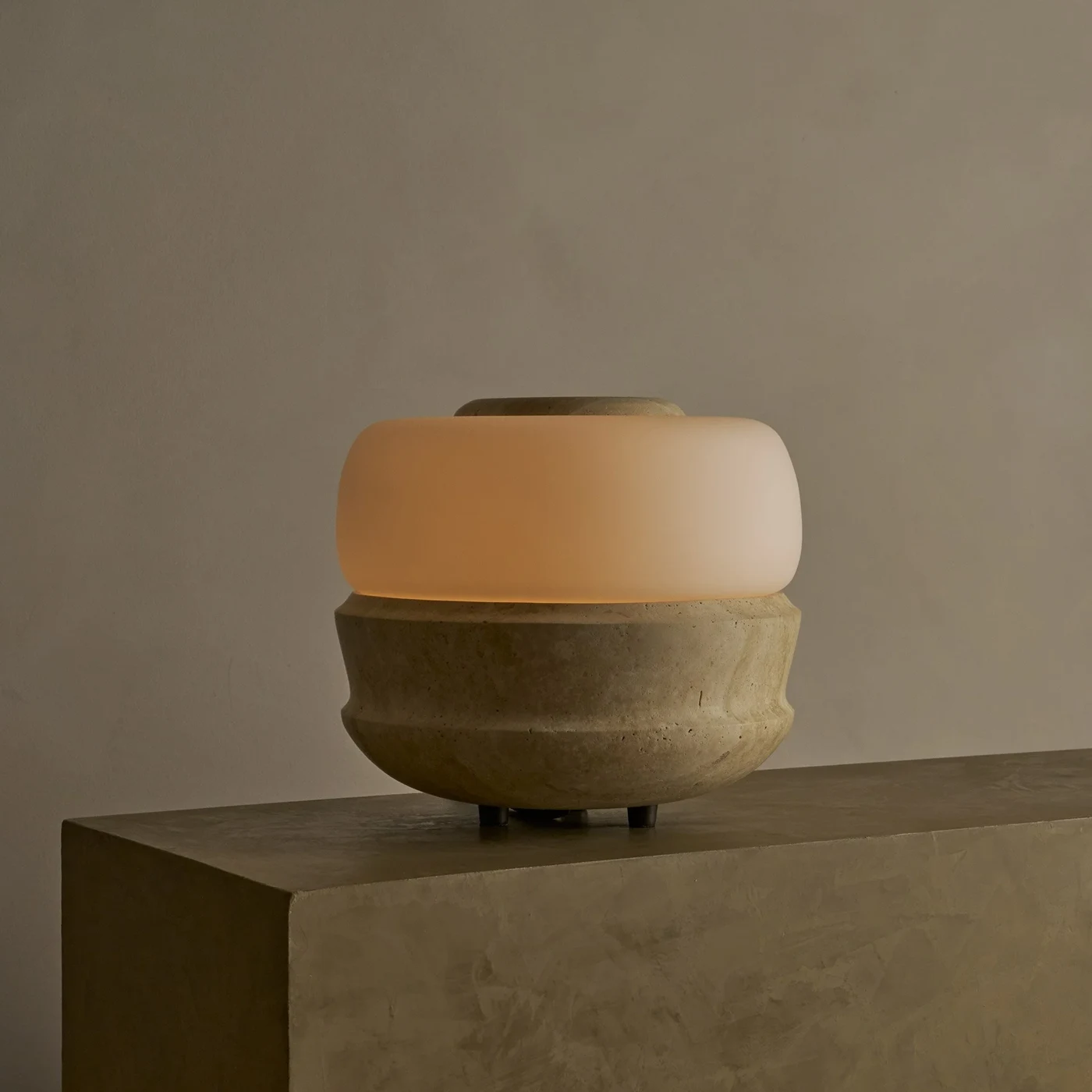

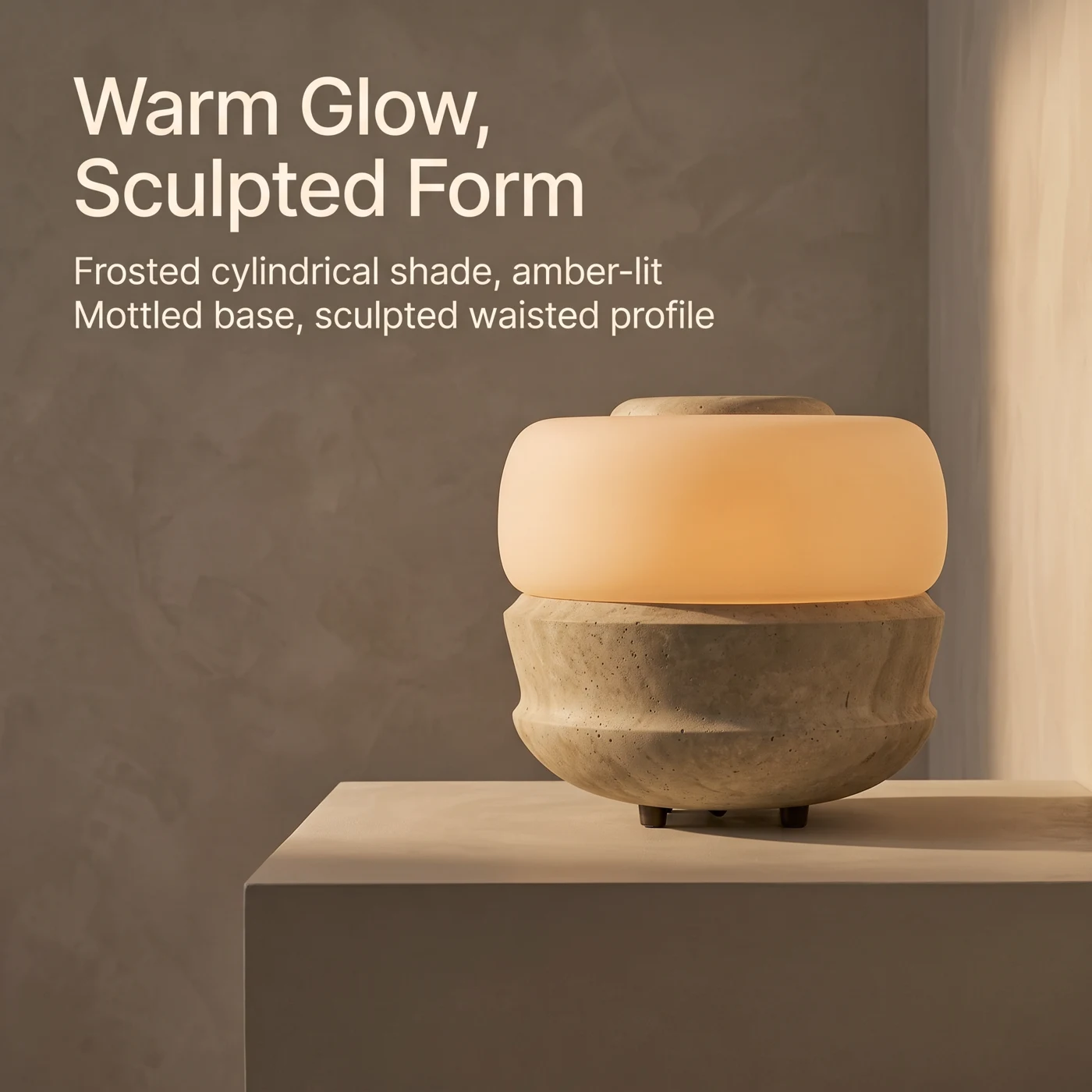
Review the result · Before publishing
Compare the result with your source materials: product shape, colors, labels, quantities and text. Download selected files, adjust the crop for the actual placement and preview on a phone. Kitloom does not publish to the platform. These are creative recommendations, not a guarantee of platform approval; check the current requirements in your account.