 kitloom
Taobao · Amazon A+ Content Images · Platform guides
Create coordinated Basic or Premium A+ modules from your product photos, with reviewed copy and exact-size JPEG exports. Choose separate copy or embedded text, and desktop or mobile Premium images.
Choose the placement
For a Taobao listing, separate the identification image from detail-page explanations. Keep the actual variant clear and preview small thumbnails before uploading.
Prepare your materials
Upload 1–8 photos of the same product. Add product documents to ground the copy in verified facts. Each selected module image is generated and billed separately.
Optional: one visual style reference, used only for composition and lighting, never product identity or claims.
Separate copy keeps headlines and body text outside the image. Embedded copy is typeset locally; small tiles show only the headline. Authentic product labels are preserved.
Amazon A+ Content Images · Guides ↗What you’ll receive
Amazon A+ Content Images
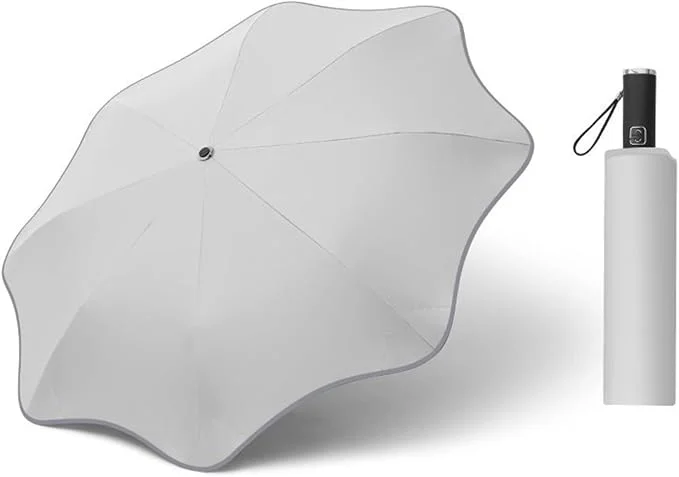
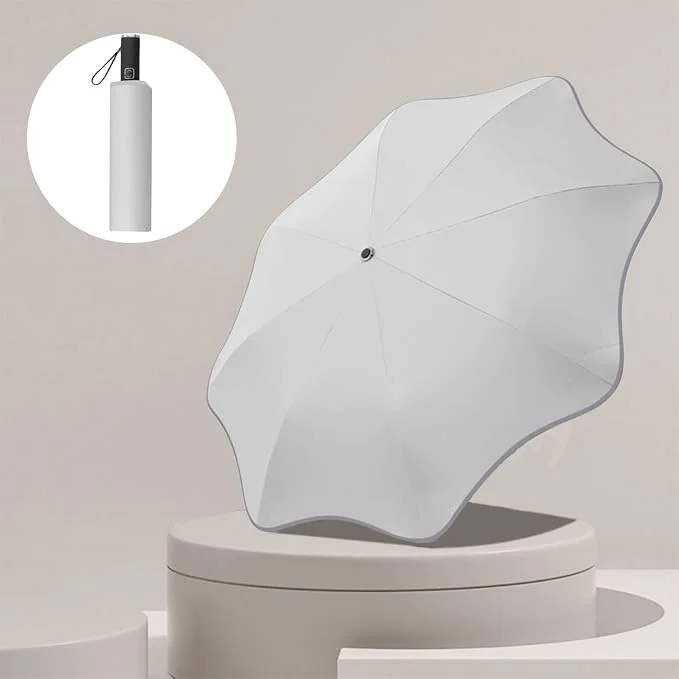
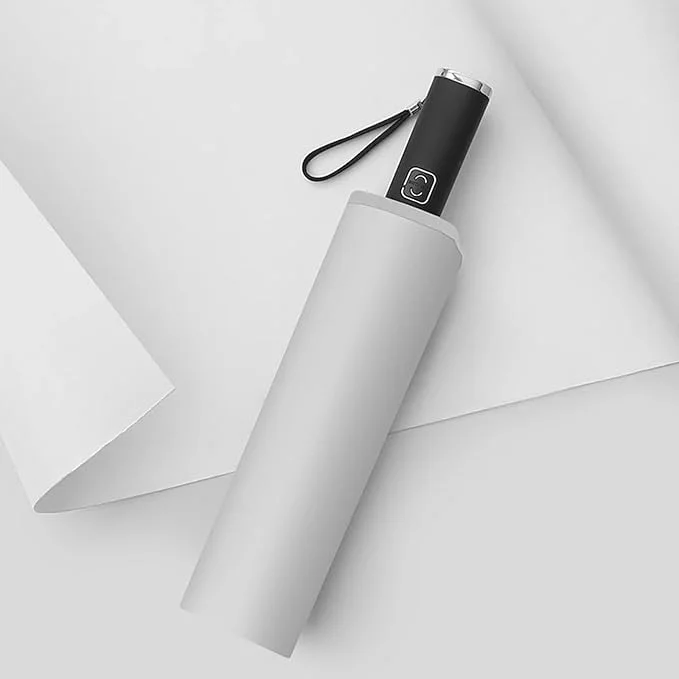
Amazon A+ Content Images
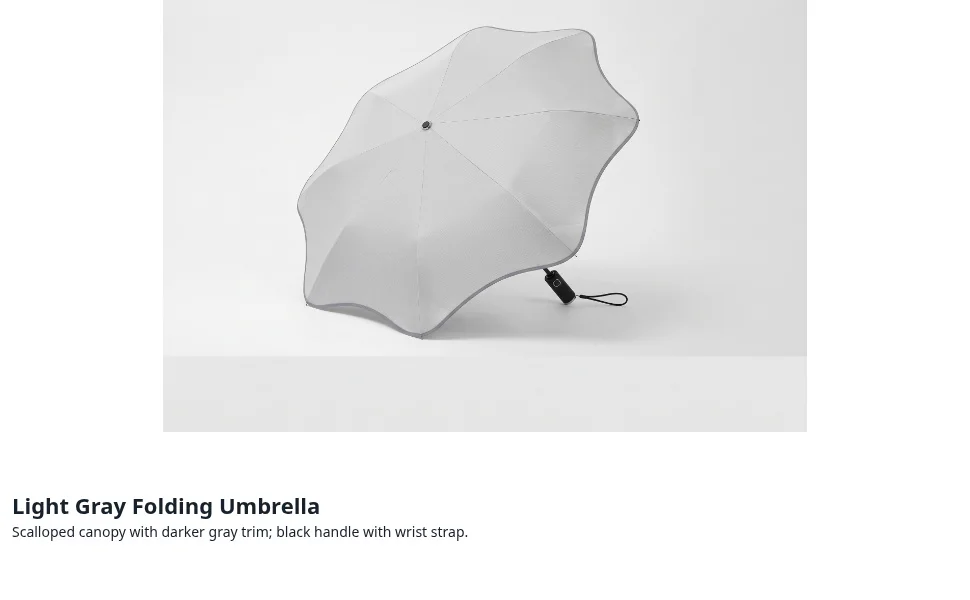
Review the result · Before publishing
Compare the result with your source materials: product shape, colors, labels, quantities and text. Download selected files, adjust the crop for the actual placement and preview on a phone. Kitloom does not publish to the platform. These are creative recommendations, not a guarantee of platform approval; check the current requirements in your account.
Reuse the exported A+ module images as visual assets in the destination editor. This does not create native storefront sections or publish Amazon A+ content on another platform. Review cropping and layout there.